How to Redeem Gift Card iTunes: Easy Step-by-Step Guide
Have you ever received an iTunes gift card and wondered how to use it? Redeeming your iTunes gift card is easier than you think, and it opens the door to a world of music, apps, movies, and more.
In this guide, you’ll learn simple, step-by-step instructions to redeem your gift card quickly. Keep reading, and you’ll be enjoying your favorite content in no time. Don’t miss out on making the most of your gift—let’s get started!

Credit: m.youtube.com
Where To Redeem Itunes Gift Cards
iTunes gift cards can be redeemed in several places. You can use your iPhone, iPad, Mac, PC, or Apple TV. Each device offers a simple way to add credit to your Apple ID. This credit lets you buy apps, music, movies, and more from Apple’s stores. Choose the device that fits your needs and follow the easy steps.
Using Iphone Or Ipad
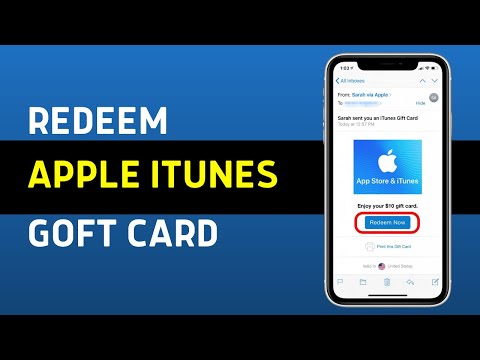
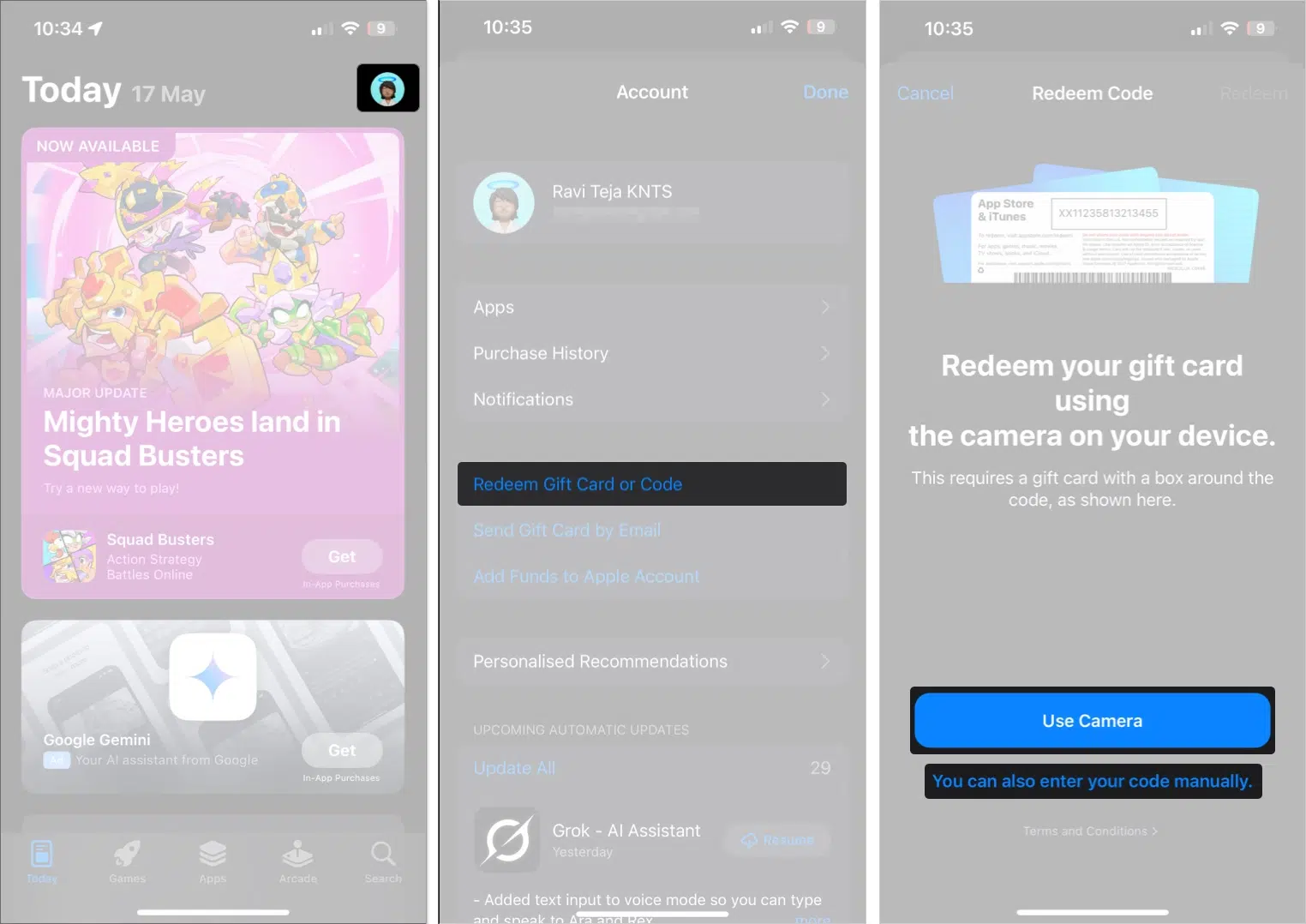
Open the App Store app on your device. Tap your profile picture at the top right. Select “Redeem Gift Card or Code.” You can use the camera to scan the card or enter the code manually. After confirmation, your balance updates instantly.
On a Mac, open the App Store app. Click your name at the bottom left. Choose “Redeem Gift Card.” Enter the code or scan the card with your camera. On a PC, open iTunes and sign in. Click “Account” and then “Redeem.” Input the code and confirm.
Using The Apple Tv
Go to the App Store on your Apple TV. Scroll down and select “Redeem.” Enter your Apple ID password. Type in the gift card code using the remote. Your account balance updates for purchases on Apple TV.
Preparing Your Device
Before redeeming your iTunes gift card, prepare your device properly. This ensures a smooth process and avoids errors. Checking your Apple ID, updating your software, and connecting to Wi-Fi are essential steps. Each step is simple and quick to do.
Checking Apple Id
Make sure you are signed in with the correct Apple ID. This ID must match the one used in the App Store or iTunes Store. Go to your device settings and look for your Apple ID at the top. If not signed in, enter your Apple ID and password. A valid Apple ID is necessary to redeem gift cards.
Updating Software
Keep your device software up to date. Updates fix bugs and improve security. Open Settings, tap General, then Software Update. If an update is available, download and install it. Updated software helps avoid redemption issues with the gift card.
Connecting To Wi-fi
A stable internet connection is crucial for redeeming gift cards. Use Wi-Fi instead of mobile data for better speed and reliability. Check your Wi-Fi settings and connect to a trusted network. A strong connection prevents interruptions during the redemption process.
Redeeming Steps On Iphone And Ipad
Redeeming an iTunes gift card on your iPhone or iPad is straightforward and quick. Whether you have a physical card or a digital one, the process is designed to get you up and running with your credit in no time. Let’s walk through the steps to make sure you can enjoy your new balance without any hassle.
Opening The App Store
Start by unlocking your iPhone or iPad and locating the App Store icon. It’s usually on your home screen and looks like a blue square with a white “A” made of paintbrushes. Tap to open it, and you’ll see the main page where you can browse apps, games, and more.
Have you noticed how often you visit the App Store? This is the gateway not just for apps but for redeeming your gift card too.
Accessing The Redeem Option
Once inside the App Store, look towards the top right corner for your profile picture or the sign-in icon. Tap it to open your account settings. Here, you will find the “Redeem Gift Card or Code” option—select this to proceed.
If you’re signed in, this option appears instantly. If not, you’ll need to sign in with your Apple ID first. This extra step keeps your account secure and linked to your gift card.
Entering The Code Manually
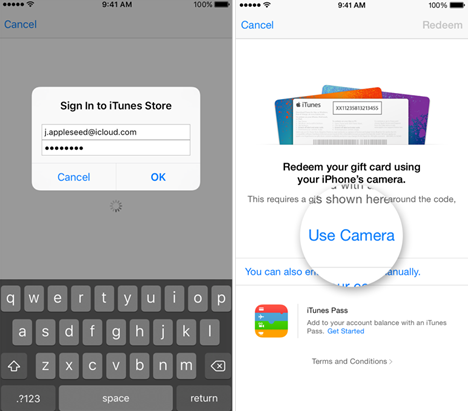
If your gift card has a printed code, you can enter it manually. Simply tap on “You can also enter your code manually” and use the on-screen keyboard to type the characters exactly as they appear. Accuracy is key here; even one wrong letter or number will cause an error.
Take your time typing the code. Did you know that some people double-check by reading the code out loud? It’s a small trick that helps prevent mistakes.
Using The Camera To Scan
For a faster option, tap “Use Camera” to scan the gift card code. Hold your card so the camera can clearly see the code within the frame. Your device will automatically recognize and redeem the code if the lighting and focus are good.
This method is especially handy if you have a physical card and want to avoid typing errors. However, if the scan doesn’t work, don’t worry—you can always switch back to manual entry.
Credit: www.youtube.com
Redeeming On Mac Or Pc
Redeeming your iTunes gift card on a Mac or PC is straightforward once you know where to look. Whether you want to add credit to your Apple ID or purchase apps, music, or movies, the process is similar across devices. Let’s walk through the key steps to get your gift card balance added quickly and easily.
Launching The Itunes Or Music App
Start by opening the app where you usually manage your Apple purchases. On a Mac running macOS Catalina or later, this will be the Music app. If you’re using an older macOS version or a PC, open iTunes instead.
Look for the app icon in your Dock or Start menu. If it’s not immediately visible, use the search feature on your computer to find it. Having the right app open is crucial, as redemption options won’t appear elsewhere.
Signing In To Your Account
Next, make sure you’re signed into your Apple ID. Click on the “Account” menu at the top of the screen, then select “Sign In” if you aren’t already logged in. Enter your Apple ID credentials carefully to avoid errors during redemption.
If you’ve forgotten your password, now is a good time to reset it. Being logged in ensures the gift card balance links directly to your account for immediate use.
Entering The Gift Card Code
Once signed in, head back to the “Account” menu and look for the option labeled “Redeem.” Clicking this will open a window where you can enter your gift card code.
Type the code exactly as it appears on your card, including any hyphens. Double-check each character before submitting to prevent mistakes. After entering the code, click “Redeem” and watch your balance update.
If you encounter an error, confirm that the code hasn’t been used before and is valid for your country. Have you ever had trouble with gift card codes not working? Sometimes, a quick restart of the app can fix minor glitches.
Troubleshooting Common Issues
Redeeming an iTunes gift card should be a smooth process, but sometimes issues pop up that stop you from enjoying your credit. Understanding common problems can save you time and frustration. Let’s look at some typical roadblocks and how you can overcome them.
Invalid Code Errors
Seeing an “Invalid Code” message can feel frustrating, especially after buying a gift card. Often, this happens because the code was entered incorrectly. Double-check every character—letters can look like numbers, such as “O” and “0”.
Another cause might be that the card has already been redeemed. Have you asked the gift giver if they used the card themselves? If you suspect the card is faulty, contacting the retailer or Apple Support can help clarify the situation.
Account Restrictions
Your Apple ID may have restrictions that prevent redeeming gift cards. For example, if you have payment issues or your account is flagged for security reasons, redemption might be blocked. Check your account settings to ensure everything is current.
Sometimes, parental controls or Screen Time settings can limit purchases and redemptions. If you share your device with family, ask if these restrictions are in place. Adjusting these settings can unlock the ability to redeem your card quickly.
Region Compatibility
iTunes gift cards are often region-specific. If your Apple ID is registered in a different country than the gift card’s origin, you might see errors during redemption. Have you ever tried redeeming a gift card bought abroad? This mismatch can cause problems.
To fix this, check your Apple ID’s country or region in your account settings. If needed, update it to match the gift card’s region. Keep in mind that changing your region might affect your access to previous purchases or subscriptions.
Credit: www.igeeksblog.com
Tips For Managing Your Itunes Balance
Managing your iTunes balance wisely can make your digital purchases smoother and more enjoyable. It’s easy to lose track of how much credit you have, which can lead to unexpected declines at checkout. Keeping an eye on your balance and knowing how to use it effectively helps you avoid those moments and lets you get the most out of your iTunes gift cards.
Checking Remaining Balance
Do you ever wonder how much iTunes credit you still have? Checking your remaining balance is simple and quick. Just open the App Store or iTunes Store app, tap your profile icon, and look for the “Redeem Gift Card or Code” section.
Your balance will appear right under your name, so you can see exactly what’s available before making a purchase. This little step saves you from the frustration of buying something only to find out your funds are insufficient.
Using Balance For Purchases
Using your iTunes balance for purchases is straightforward, but did you know you can prioritize it over other payment methods? When you make a purchase, your iTunes balance is automatically applied first. If the balance doesn’t cover the entire amount, the remainder is charged to your default payment method.
This setup means you don’t have to manually select your balance every time. It’s a smart way to ensure you use your gift card credit before dipping into your bank account or credit card.
Gifting Itunes Credit
Have you ever thought about sharing your iTunes credit with friends or family? While you can’t directly transfer your balance, you can buy and send iTunes gift cards to others. This is perfect for birthdays, holidays, or just because.
Buying a gift card in a specific amount lets the recipient enjoy the freedom to choose apps, music, or movies they want. It’s a thoughtful way to pass on some digital joy without worrying about complicated transfers or refunds.
Frequently Asked Questions
How Do I Redeem An Itunes Gift Card On Iphone?
Open the App Store, tap your profile, then select “Redeem Gift Card. ” Enter the code manually or scan it with your camera. Your balance updates immediately for purchases.
Can I Redeem Itunes Gift Cards On A Computer?
Yes, open iTunes or the Music app, go to “Account,” choose “Redeem,” then enter the gift card code. Your credit will apply to your Apple ID.
What If My Itunes Gift Card Says “invalid Code”?
Check the card for damage or incorrect entry. Ensure the card is activated and valid in your country. Contact Apple Support if issues persist.
Can I Use Itunes Gift Cards For Subscriptions?
Yes, you can use your iTunes gift card balance to pay for Apple subscriptions like Apple Music or Apple TV+. The balance applies automatically during checkout.
Conclusion
Redeeming an iTunes gift card is quick and easy to do. Just follow the simple steps to add credit to your account. You can then buy apps, music, movies, or books right away. Keep your card safe until you use it to avoid any issues.
Now, enjoy your favorite content without extra cost. Stay confident with your purchases and have fun exploring new things on iTunes. Simple, fast, and convenient—redeeming gift cards makes digital shopping smooth. Give it a try and see how easy it really is!

Similar Posts