How to Redeem Itunes Gift Card: Easy Steps for Instant Access
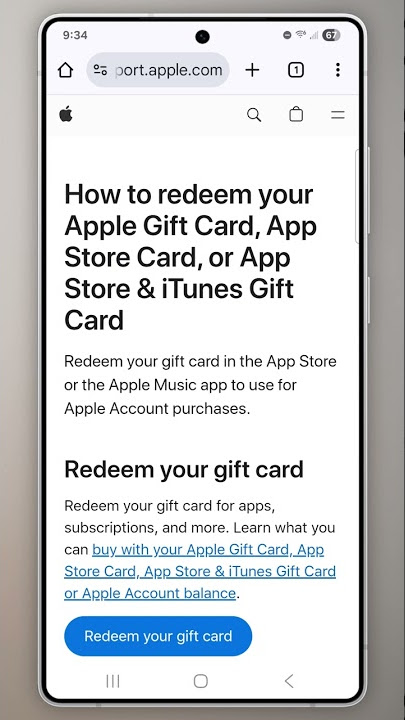
Have you just received an iTunes gift card and wonder how to make the most of it? Redeeming your iTunes gift card is easier than you think, and it opens the door to thousands of songs, apps, movies, and more.
In this guide, you’ll discover simple, step-by-step instructions to quickly add your gift card balance and start enjoying your favorite content right away. Keep reading, and you’ll never miss out on the best entertainment Apple has to offer.
Understanding Itunes Gift Cards
Understanding iTunes Gift Cards is essential before you redeem one. These cards are a popular way to add credit to your Apple ID, allowing you to purchase apps, music, movies, and more. Knowing the different types and where to buy them can save you time and avoid frustration.
Types Of Itunes Gift Cards
iTunes Gift Cards come in various forms to suit different needs. You’ll find physical cards, which you can hold and gift in person, and digital cards sent directly to your email. Both types work the same way, but digital cards offer instant delivery, perfect for last-minute gifts.
Some cards are region-specific, meaning they only work in the country where you bought them. If you travel or move, this is crucial to remember. Also, note that some cards are specifically for the App Store and iTunes, while others cover the entire Apple ecosystem, including Apple Books and Apple Music.
Where To Purchase
You can buy iTunes Gift Cards from many places, both online and offline. Apple’s official website is a safe choice, ensuring you get a legitimate card. Retail stores like Walmart, Best Buy, and grocery stores often stock physical cards, making it easy to pick one up during your regular shopping.
Online marketplaces like Amazon also sell these cards, but be cautious of third-party sellers to avoid scams. Some mobile carriers and banks offer iTunes credits as part of promotions or rewards, so check with your provider. Where have you found the most convenient place to buy your gift card?
Preparing To Redeem
Before you dive into redeeming your iTunes gift card, some quick preparation can save you time and frustration. Making sure your card is valid and knowing exactly where to find your redemption code are essential first steps. These simple checks help you avoid common pitfalls and get straight to enjoying your credit.
Checking Card Validity
First, verify that your iTunes gift card is still active and hasn’t expired. Look for an expiration date printed on the back or on the packaging.
If you bought your card from a store, keep the receipt—it can be useful if there’s an issue. Have you ever tried to redeem a card only to find it was deactivated? Avoid that hassle by confirming the card’s status beforehand.
Locating The Code
The key to redeeming your gift card is the unique code hidden under a scratch-off area on the back. Gently scratch off the silver strip with a coin to reveal your code without damaging the numbers.
Sometimes, codes come in the form of a printed barcode or QR code—make sure you know which one applies to your card. If you’re using a digital gift card, the code will be in the email or message you received.
Redeeming On Ios Devices
Redeeming an iTunes gift card on your iOS device is straightforward and can be done in a couple of simple ways. Whether you prefer using the App Store or accessing your device settings, both options quickly add credit to your Apple ID. Let’s look at how you can redeem your gift card effortlessly right from your iPhone or iPad.
Using The App Store
Open the App Store app on your iOS device. At the bottom of the screen, tap your profile icon to access your account settings.
Next, select Redeem Gift Card or Code. You can either enter the code manually or use your device’s camera to scan the gift card’s QR code. Scanning often feels faster and reduces the chance of errors.
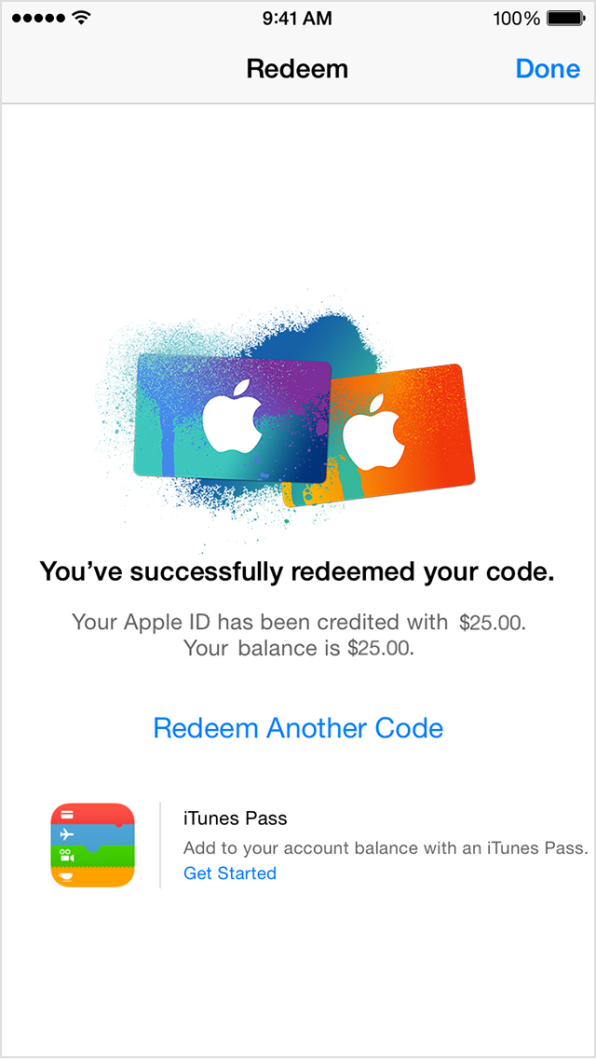
After entering the code, tap Redeem. Your balance updates immediately, allowing you to start purchasing apps, music, or subscriptions without delay. Have you ever found yourself frustrated by typing long codes? This scan feature might just save you from that hassle.
Redeeming Via Settings
You can also redeem your gift card through your device’s Settings app. Open Settingsand tap on your name at the top to access Apple ID settings.
Choose Media & Purchases, then tap Redeem Gift Card. Just like with the App Store, you can enter the code manually or scan it using your camera.
This method is handy if you’re already adjusting other Apple ID settings and want to redeem without switching apps. Have you tried redeeming this way before? It’s a useful shortcut for frequent gift card users.
Credit: medium.com
Redeeming On Mac Or Pc
Redeeming an iTunes gift card on a Mac or PC is simple. It adds credit to your Apple ID, letting you buy apps, music, and more. There are two main ways to redeem your card depending on your software setup. Both methods work smoothly and take just a few moments.
Through Itunes Software
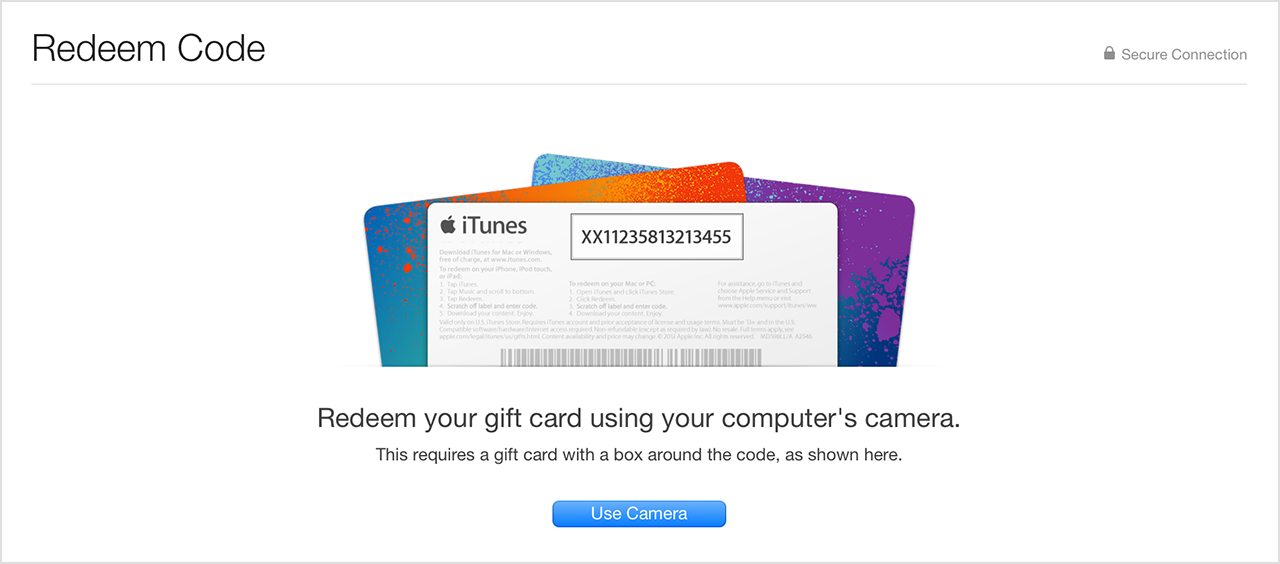
Open the iTunes app on your Mac or PC. Sign in with your Apple ID if needed. At the top menu, click Account, then select Redeem. Enter the gift card code manually or use your device’s camera to scan the code. Click Redeemto add the balance to your account. The credit updates immediately. Use it to purchase items from the iTunes Store.
Via Apple Music App
Launch the Apple Music app on your Mac. Sign in with your Apple ID. From the menu bar, click Accountand choose Redeem. Type the gift card code or scan it with your camera. Confirm by clicking Redeem. Your balance will show up right away. This credit works for music, subscriptions, and more.
Troubleshooting Common Issues
Sometimes redeeming your iTunes gift card doesn’t go as smoothly as expected. Encountering errors can be frustrating, especially when you’re eager to use your credit or download that new app. Understanding common issues and how to fix them can save you time and avoid unnecessary stress.
Invalid Code Error
If you see an “Invalid Code” message, first double-check each character on your card. It’s easy to confuse similar-looking letters and numbers like ‘O’ and ‘0’ or ‘I’ and ‘1’.
Make sure you enter the code exactly as shown, without extra spaces. If you’re copying and pasting, try typing it manually instead.
Sometimes, this error happens because the card isn’t activated yet. If you bought the card in a store, ask the cashier to verify activation. Online purchases may take a few minutes to process.
Card Already Redeemed
Seeing a message that your card is already redeemed can be alarming. This usually means the credit has already been added to someone’s Apple ID.
Think back to whether you or someone else might have used the card before. If you bought the card from a third party, there’s a risk it was used or resold.
If you believe this is a mistake, contact Apple Support with your receipt and card details. They can help verify the status and possibly resolve the issue.
Utilizing Your Itunes Credit
Once you redeem your iTunes gift card, your credit becomes a versatile tool for enhancing your digital experience. You can use this credit in various ways that suit your lifestyle and interests. Understanding how to make the most of your iTunes credit can save you money and give you access to countless apps, songs, movies, and subscriptions.
Purchasing Apps And Media
Your iTunes credit lets you buy apps, games, music, movies, and TV shows directly from the App Store or iTunes Store. Whether you’re looking for a productivity app or the latest blockbuster movie, your credit covers the cost without needing to link a credit card.
Have you ever found a paid app that seemed useful but hesitated to buy it? Using your iTunes credit removes that barrier, allowing you to try new things risk-free. You can also gift apps or media to friends by purchasing and sharing content, spreading the joy of discovery.
- Download new apps to improve your daily routine
- Buy albums or singles from your favorite artists
- Rent or purchase movies and TV shows for entertainment
- Upgrade games with in-app purchases using your credit
Subscription Services
iTunes credit works perfectly for paying subscription services like Apple Music, Apple TV+, Apple Arcade, and iCloud storage plans. This way, you can enjoy uninterrupted access to your favorite digital content without worrying about monthly bills.
Imagine using your gift card credit to enjoy ad-free music or store your photos securely in iCloud. It’s a smart way to manage your subscriptions, especially if you want to control your spending or avoid linking your bank details to your Apple ID.
- Subscribe to Apple Music for unlimited music streaming
- Access Apple TV+ for exclusive shows and movies
- Play hundreds of games with Apple Arcade
- Expand your iCloud storage to keep your files safe
What’s the next subscription service you could try with your iTunes credit? Sometimes, using your credit can help you explore new digital experiences you hadn’t considered before.
Safety Tips And Best Practices
Redeeming an iTunes gift card is simple and fun. Still, keeping your account safe is very important. Follow these safety tips and best practices to protect your money and personal data.
Protecting Your Account
Use a strong password for your Apple ID. Avoid easy passwords like “123456” or “password.” Change your password regularly to keep your account safe. Turn on two-factor authentication for extra security.
Never share your Apple ID or password with others. Check your account activity often. If you see anything strange, change your password immediately. Only redeem gift cards in the official Apple App Store or iTunes Store.
Avoiding Scams
Be careful with emails or messages asking for your gift card details. Apple will never ask for your gift card code by email or phone. Do not share your card number or PIN with anyone.
Buy gift cards only from trusted stores or Apple directly. Avoid deals that seem too good to be true. Scammers often use fake websites or messages to steal your card value.
Always check the card’s packaging for damage or tampering before buying. Keep your receipt as proof of purchase. If you suspect fraud, report it to Apple and your local authorities quickly.
Credit: medium.com

Credit: medium.com
Frequently Asked Questions
How Do I Redeem An Itunes Gift Card On Iphone?
Open the App Store app, tap your profile icon, then select “Redeem Gift Card or Code. ” Enter the card code or use your camera to scan it. The balance will apply to your Apple ID for purchases.
Can I Redeem An Itunes Gift Card On A Computer?
Yes, open the iTunes app or Apple Music, click your account, then choose “Redeem. ” Enter the gift card code to add the balance to your Apple ID.
What Can I Buy With An Itunes Gift Card?
You can buy apps, games, music, movies, TV shows, and iCloud storage. The gift card balance applies to all Apple digital content and services.
Why Won’t My Itunes Gift Card Redeem?
Check if the card is already used, expired, or region-restricted. Ensure your Apple ID matches the card’s country. Contact Apple Support if issues persist.
Conclusion
Redeeming an iTunes gift card is simple and quick. Just follow the steps carefully. Enter the code exactly as shown on the card. Your balance will update right away. Use the credit to buy apps, music, or movies. Keep the card safe until you redeem it.
Remember, you need an Apple ID to redeem the card. Enjoy your purchases without any hassle. Now, you can add funds easily to your account. Happy shopping on iTunes!

Similar Posts