How to Add Starbucks Gift Card to App: Easy Steps to Save & Sip
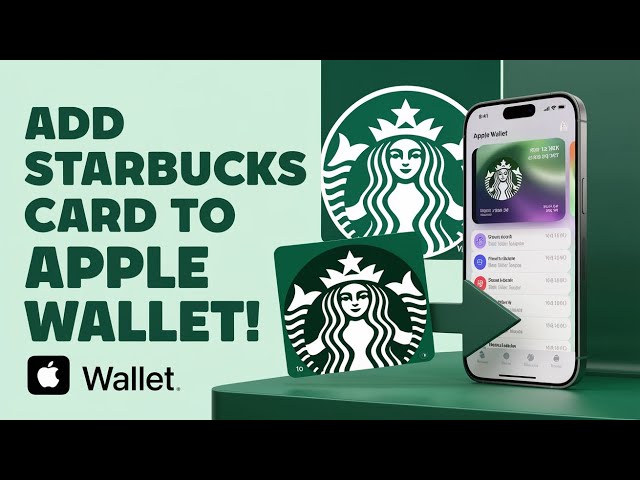
Have you ever wondered how to make your Starbucks experience even smoother? Adding your Starbucks gift card to the app is the easiest way to pay, reload, and track your balance—all from your phone.
Imagine skipping the wallet search and enjoying your favorite coffee with just a tap. In this guide, you’ll learn exactly how to add your Starbucks gift card to the app quickly and effortlessly. Keep reading, and you’ll be sipping your next latte faster than ever.
Credit: www.toastycard.com
Starbucks App Benefits
The Starbucks app offers many benefits that make buying coffee easier and more rewarding. It saves time and adds value to every purchase. Users enjoy smooth payments and useful features that enhance their experience. The app connects you to Starbucks anytime and anywhere.
Convenience Of Mobile Payments
Pay for your drinks and food quickly using the app. No need to carry cash or cards. Just scan the barcode at checkout. This speeds up the line and reduces waiting time.
Earn Rewards And Bonuses
Collect stars with every purchase to earn free drinks and food. The app tracks your progress automatically. Special offers and bonuses appear regularly for app users. These rewards make each visit more enjoyable.
Track Your Balance Easily
Check your gift card balance anytime in the app. No guesswork or calling customer service needed. The app shows your total funds and recent transactions. This helps you manage your spending better.

Credit: www.tiktok.com
Preparing Your Gift Card
Preparing your Starbucks gift card before adding it to the app saves time. It helps avoid errors and makes the process smooth. Knowing your card details ensures quick entry and verification.
Check Your Card Balance
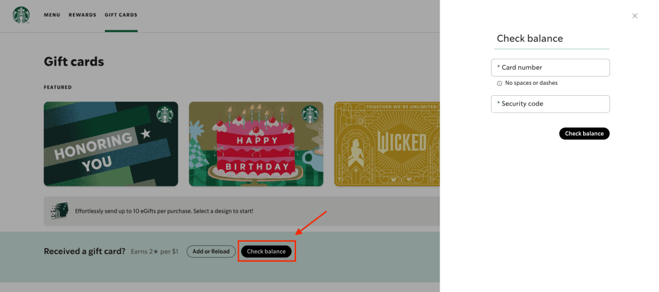
Start by checking the balance on your Starbucks gift card. This shows how much money is available to spend. You can check the balance on the Starbucks website or by calling customer service. Having the balance ready helps confirm the card is active and funded.
Locate The Card Number And Pin
Find the card number on the back of your gift card. It is usually a long string of digits. The PIN is a short code, often under a scratch-off panel. You need both the card number and PIN to add the card to the app. Keep them handy before starting the process.
Adding Gift Card On Ios
Adding a Starbucks gift card to the iOS app makes paying easier and faster. The app keeps your card balance ready for use anytime. Follow simple steps to link your gift card securely.
Download And Open The App
Start by downloading the Starbucks app from the App Store. Open the app and sign in with your Starbucks account. If you don’t have an account, create one quickly in the app.
Navigate To The Payment Section
Tap the “Pay” tab at the bottom of the screen. This section shows your current payment options. Look for the option to add a new gift card or payment method.
Enter Card Details Manually
Select the option to add a gift card. Enter the 16-digit card number and the security code on the back. Double-check the numbers to avoid errors before saving.
Scan Gift Card Barcode
Choose the scan option to use your iPhone camera. Hold the gift card barcode steady in front of the camera. The app reads the code and adds the card instantly.
Adding Gift Card On Android
Adding a Starbucks gift card to the app on an Android device is simple and fast. This process lets you check your card balance, reload funds, and pay easily at Starbucks stores. Follow these clear steps to add your gift card without hassle.
Install And Launch The App
Download the Starbucks app from the Google Play Store. Open the app once the installation finishes. Sign in or create a new account to start using the app features.
Find The Add Card Option
Tap the “Pay” tab at the bottom of the screen. Look for the “Add a Card” button and select it. This area lets you enter new gift cards or reload existing ones.
Input Card Number And Pin
Carefully type the card number found on the back of your gift card. Enter the PIN, usually hidden under a scratch-off area. Double-check the details to avoid errors.
Use Camera To Scan Card
Allow the app to access your camera. Hold the gift card steady to scan the number and PIN automatically. This option speeds up the process and reduces typing mistakes.
Troubleshooting Common Issues
Adding a Starbucks gift card to your app should be simple, but sometimes issues pop up that can slow you down. Troubleshooting these common problems can save you time and frustration. Let’s look at some typical errors and how you can fix them quickly.
Invalid Card Number Errors
If you see an “Invalid Card Number” error, double-check the digits you entered. Typos happen easily, especially with long card numbers.
Ensure you’re entering the number without extra spaces or dashes. The card number should match exactly what’s on your physical or digital card.
If the error persists, try scanning the barcode using your phone’s camera instead of typing it. Sometimes, the app reads the number more accurately this way.
App Not Responding
When the Starbucks app freezes or won’t respond while adding your card, it can be tempting to give up. First, close the app completely and reopen it.
Check if you have a stable internet connection. A weak connection can cause the app to hang during the card-adding process.
If the problem continues, restart your device. Clearing the app cache or reinstalling the app often fixes deeper glitches.
Card Not Loading Properly
Sometimes your card appears in the app but won’t load or show the correct balance. This can happen due to syncing delays between the app and Starbucks’ servers.
Try refreshing the app or logging out and back in to force a sync. You can also check your card status on the Starbucks website to confirm it’s active.
If your balance still doesn’t update, contacting Starbucks customer service can help resolve the issue faster. Have your card number handy to speed up the process.

Credit: www.youtube.com
Managing Multiple Cards
Handling multiple Starbucks gift cards on your app can feel overwhelming at first. But once you get the hang of it, managing your balance and choosing which card to use becomes simple and efficient. Keeping track of your cards helps you avoid confusion and ensures you always have funds ready for your next coffee craving.
Switching Between Cards
Switching between your Starbucks gift cards is straightforward. In the app, you’ll see a list of all your added cards under the payment section. Simply tap the card you want to use for your purchase.
This feature is especially useful if you have gift cards for different occasions or if one card has a low balance. Have you ever been at the checkout and realized your active card didn’t have enough balance? Switching cards quickly stops that from happening.
Reloading Your Gift Cards
Reloading gift cards keeps you prepared for your next coffee run without interruptions. You can add funds directly through the app using a credit card or PayPal. This saves you from buying new cards repeatedly.
Consider setting up auto-reload to keep your favorite card topped up automatically. It’s a convenient way to avoid running out of balance, especially if you visit Starbucks regularly. Have you tried auto-reload? It’s like having a refill button for your coffee budget.
Tips For Maximizing Rewards
Maximizing rewards from your Starbucks Gift Card can turn your daily coffee run into a rewarding experience. By using a few smart strategies, you can earn more Stars, access exclusive deals, and enjoy perks that make each sip more satisfying. Let’s look at practical ways to boost your rewards effortlessly.
Linking Cards To Starbucks Rewards
Linking your Starbucks Gift Card to your Starbucks Rewards account is essential to start earning Stars with every purchase. When your card is connected, every dollar you spend counts toward free drinks and food.
To link your card:
- Open the Starbucks app and go to the “Pay” section.
- Select “Add a Card” and enter your gift card details.
- Sign in or create a Starbucks Rewards account to sync your card.
Once linked, you can track your Stars and redeem rewards right from the app. Think about how much you spend on coffee weekly—linking your card ensures you never miss out on Stars that add up quickly.
Using Cards For Special Promotions
Starbucks often runs special promotions that give you bonus Stars or discounts when you use your gift card. These promotions can double your rewards or offer exclusive items at a lower price.
Keep an eye on the “Offers” tab in the app. Starbucks frequently updates it with limited-time deals tailored to your purchase habits.
- Participate in double Star days to earn twice the rewards.
- Use your gift card during seasonal promotions for bonus treats.
- Combine promotions with your regular purchases for maximum benefit.
One time, I earned enough bonus Stars during a weekend promotion to get a free drink the very next day. What’s the last Starbucks offer you took advantage of? Using these promotions can speed up your path to rewards.
Frequently Asked Questions
How Do I Add A Starbucks Gift Card?
To add a Starbucks gift card to the app, open the app and tap on “Pay. ” Select “Add Card” and enter your card details. Follow the on-screen instructions to save the card. Once added, you can use it for mobile payments and earn rewards easily.
Can I Transfer My Starbucks Gift Card Balance?
Yes, you can transfer your Starbucks gift card balance. Go to the app, select “Pay,” and tap on “Manage. ” Choose “Transfer Balance” and follow the instructions. Ensure both cards are registered in your account. This allows you to consolidate funds for convenient usage.
Is Starbucks Gift Card Compatible With The App?
Yes, Starbucks gift cards are fully compatible with the app. You can easily add them to your Starbucks account for payments and rewards. The app allows you to manage card balances, reload funds, and view transaction history, making it user-friendly and efficient.
How To Check Starbucks Gift Card Balance?
To check your Starbucks gift card balance, open the app and tap on “Pay. ” Your card balance is displayed prominently. You can also view detailed transaction history for better management. Alternatively, visit the Starbucks website and log in to check your balance online.
Conclusion
Adding a Starbucks gift card to the app is quick and easy. Just follow the simple steps shared in this post. This lets you pay faster and track your balance anytime. No need to carry the card around. Enjoy your favorite drinks with just a tap.
Keep your gift cards safe and ready in the app. Now, you can order and pay smoothly at Starbucks stores. Try it today and enjoy the convenience.

Similar Posts