How to Use Apple Gift Card for in App Purchases: Easy Guide
Have you ever wondered how to make the most of your Apple Gift Card for in-app purchases? Whether you want to unlock new features, buy game upgrades, or subscribe to your favorite apps, using your Apple Gift Card is easier than you think.
In this guide, you’ll discover simple steps to quickly use your gift card balance without any hassle. By the end, you’ll feel confident managing your purchases and getting the best value from your Apple Gift Card every time. Keep reading to unlock the full potential of your gift card right now!

Credit: www.instagram.com
Apple Gift Card Basics
Apple Gift Cards let you add credit to your Apple ID. You can use this credit for buying apps, games, music, movies, and more. It works across Apple services like the App Store, iTunes Store, and Apple Books. This card is a simple way to pay without a credit card.
Understanding the basics helps you use the card smoothly. You need to know how to redeem the card and check your balance. These simple steps save time and avoid errors during purchases.
What Is An Apple Gift Card?
An Apple Gift Card is a prepaid card with a set amount of money. You buy it from stores or online. Then, redeem it on your Apple ID account. The money adds to your balance and pays for Apple products and services.
Where Can You Use Apple Gift Card?
- App Store for apps and games
- iTunes Store for music and movies
- Apple Books for ebooks and audiobooks
- Apple Music subscription
- Apple TV+ streaming service
How To Redeem Your Apple Gift Card
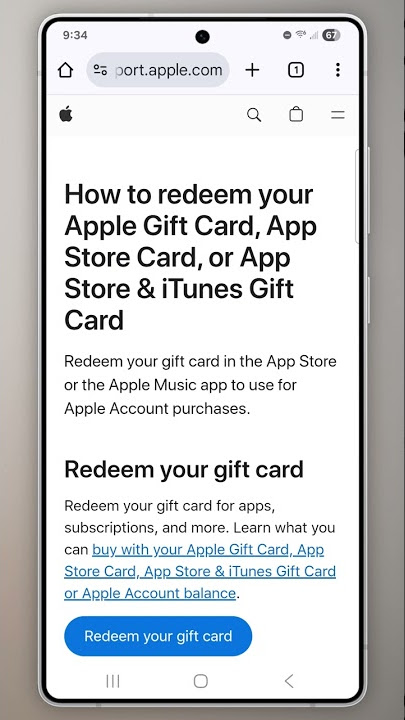
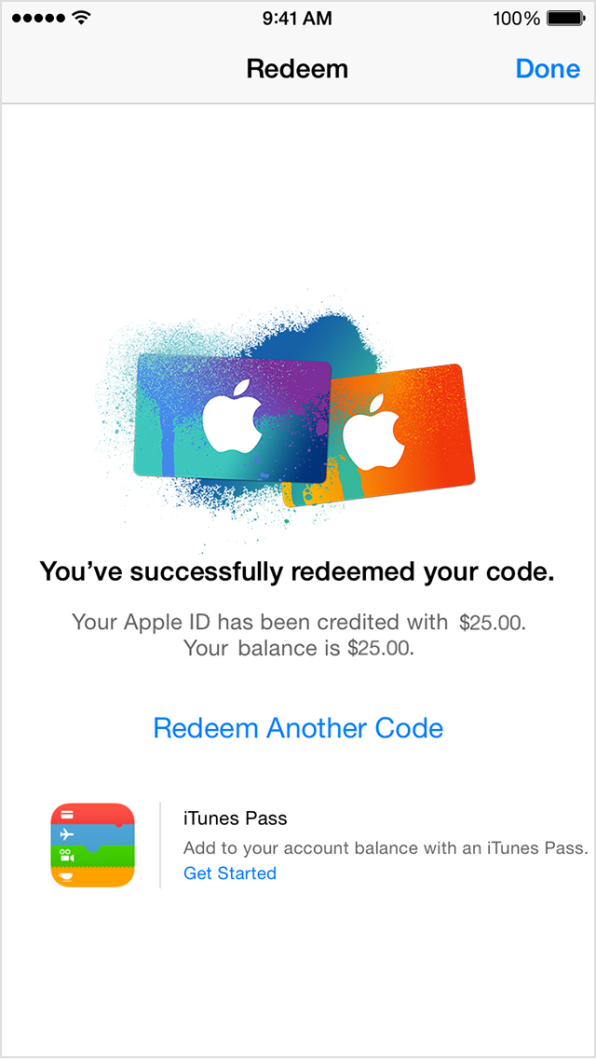
Open the App Store or iTunes Store app on your device. Tap your profile picture or the sign-in button. Select “Redeem Gift Card or Code.” Enter the code on the back of the card. The amount adds to your Apple ID balance instantly.
Checking Your Apple Gift Card Balance
Open the App Store app and tap your profile. Your balance shows below your name. You can also check in Settings under your Apple ID account. Keep track of your balance before making a purchase.

Credit: techpoint.africa
Redeeming Your Gift Card
Redeeming your Apple Gift Card is a simple process that quickly adds credit to your Apple ID, allowing you to make in-app purchases without hassle. Whether you have a physical card or a digital code, the steps are straightforward and can be done on your iPhone, iPad, or Mac. Let’s walk through how to redeem your gift card so you can start enjoying your favorite apps and games right away.
Steps To Redeem
Before you begin, make sure you have your Apple Gift Card code ready. The code is usually a 16-digit alphanumeric string or a QR code on physical cards. Redeeming the card will instantly add the balance to your Apple ID, which you can then use for in-app purchases or other Apple services.
- Open the App Store or Apple Store app on your device.
- Tap on your profile picture or the sign-in button at the top right.
- Select “Redeem Gift Card or Code.”
- Enter the 16-digit code manually or use your camera to scan the QR code.
- Confirm your Apple ID if prompted.
- Your balance will update immediately, ready for use.
Using Iphone Or Ipad
On your iPhone or iPad, redeeming an Apple Gift Card is quick and intuitive. Just open the App Store app and tap your profile icon at the top right corner. From there, choose “Redeem Gift Card or Code” and either enter the code or scan it with your device’s camera.
After redeeming, your Apple ID balance updates right away, letting you purchase apps, games, or subscriptions without entering payment details each time. Have you ever found yourself stuck at checkout because your payment method wasn’t working? This approach saves you from that frustration.
Redeeming On Mac
Redeeming your gift card on a Mac is just as easy. Open the App Store app on your Mac and click on your name or the sign-in button at the bottom left of the window. Select “Redeem Gift Card” from the dropdown menu.
Here, you can enter your gift card code manually or use your Mac’s camera to scan the card if it’s physical. Once redeemed, your Apple ID balance will update immediately, allowing you to make in-app purchases or buy apps directly from your desktop.
Making In-app Purchases
Making in-app purchases allows you to buy extra features, content, or subscriptions within an app. Using your Apple Gift Card balance makes this process simple and secure. The key steps include accessing the App Store, selecting the in-app items, and completing the payment using your Apple Gift Card balance.
Accessing The App Store
Open the App Store app on your iPhone or iPad. Use the search bar to find the app where you want to make a purchase. Tap on the app to open its page. Make sure you are signed in with your Apple ID. Your Apple Gift Card balance will be used for purchases if it is added to your account.
Selecting In-app Purchases
Launch the app where you want to buy something. Look for options like “Store,” “Shop,” or “Upgrade” inside the app. Tap the item or feature you want to buy. You may see different types of in-app purchases, such as:
- Consumables (used once, like game coins)
- Non-consumables (permanent features or tools)
- Subscriptions (renew automatically)
Choose the one that fits your need.
Completing The Transaction
After selecting the item, tap the purchase or buy button. You may need to confirm your Apple ID password or use Face ID or Touch ID. The app will charge your Apple Gift Card balance first. If the balance is low, the system will ask for another payment method. Once confirmed, your purchase will download or activate immediately.
Troubleshooting Common Issues
Sometimes, using your Apple Gift Card for in-app purchases doesn’t go as smoothly as expected. You might encounter issues like the card not being accepted or trouble checking your balance. These problems can be frustrating, but most have simple fixes that you can try yourself before reaching out for help.
Gift Card Not Accepted
If your Apple Gift Card isn’t accepted, first check if the card is valid and hasn’t expired. Double-check that you’ve entered the code correctly—mistyping even one character will cause an error.
Another common issue is regional restrictions. Apple Gift Cards are usually tied to the country of your Apple ID. If your card is from a different country, it won’t work. Changing your Apple ID country or using a card from your country might be necessary.
Have you recently changed your Apple ID country or region? This can sometimes cause temporary acceptance issues, so waiting a short while before trying again could help.
Balance Inquiry Problems
Wondering why your gift card balance isn’t showing up? This can happen if your device isn’t properly connected to the internet or if there’s a delay in syncing with Apple’s servers.
Try signing out of your Apple ID and signing back in. This refresh can often update your balance display. Also, make sure your device’s software is up to date to avoid compatibility glitches.
If you use multiple Apple IDs, confirm you’re checking the balance on the correct account linked to the gift card.
Contacting Support
If none of your attempts solve the problem, contacting Apple Support is your best move. Be ready to provide the gift card code and any error messages you received.
Apple’s support can guide you through account verification and troubleshooting steps specific to your issue. You can reach them via the Apple Support app, website, or by phone.
Have you prepared screenshots or detailed descriptions of the problem? These can speed up the support process and help you get back to making purchases faster.
Tips For Maximizing Value
Maximizing the value of your Apple Gift Card for in-app purchases takes a bit more than just redeeming and spending. You want every dollar to stretch as far as possible while avoiding common pitfalls. Here are some practical tips to help you get the most out of your gift card balance.
Combining Gift Cards
Did you know you can combine multiple Apple Gift Cards into one balance? This makes managing your funds easier and prevents small, unusable leftover amounts. Simply redeem each card on your Apple ID, and the total adds up seamlessly.
This is especially handy if you receive gift cards from different occasions. It also lets you plan larger purchases without worrying about splitting payments across cards.
Checking For Promotions
Before you spend, check if there are any ongoing promotions or discounts for the apps or in-app purchases you want. Sometimes developers offer bonus content or discounts when you pay with Apple Gift Card credit.
Signing up for newsletters from your favorite app creators or following them on social media can alert you to special deals. Have you ever missed a discount simply because you didn’t look for it? Don’t let that happen again.
Avoiding Unnecessary Purchases
It’s easy to get tempted by small in-app purchases that add up quickly. Keep track of what you really need versus what’s just a fleeting desire. This helps your gift card balance last longer and ensures you get value from every purchase.
Try setting a monthly budget for in-app spending, and stick to it. Ask yourself: “Will this purchase enhance my app experience or is it just an impulse buy?” Your gift card should empower you, not drain your wallet.
Credit: medium.com
Frequently Asked Questions
How Do I Redeem An Apple Gift Card For In-app Purchases?
To redeem, open the App Store and tap your profile. Select “Redeem Gift Card or Code,” enter the code, and tap “Redeem. ” The balance applies to your Apple ID for in-app purchases automatically.
Can Apple Gift Card Be Used For Any App Purchase?
Yes, Apple Gift Cards can be used to buy apps, subscriptions, and in-app items across the App Store and Apple services.
How Do I Check My Apple Gift Card Balance?
Go to the App Store, tap your profile, then tap “Add Funds to Apple ID. ” Your current balance will appear at the top.
What If My Apple Gift Card Doesn’t Work For In-app Purchases?
Ensure your card is redeemed to your Apple ID and the balance is sufficient. Contact Apple Support if issues persist.
Conclusion
Using an Apple Gift Card for in-app purchases is simple and quick. Just add the card balance to your Apple ID account. Then, select the item you want to buy inside the app. The cost will come from your gift card balance automatically.
This method helps control spending and avoid using credit cards. Keep track of your balance to enjoy smooth purchases. Now, you can easily buy apps, games, or extra features anytime. No need to worry about payment issues. Give it a try and enjoy hassle-free in-app shopping.

Similar Posts