How to Use Apple Gift Card Online: A Step-by-Step Guide
Have you ever wondered how to make the most out of your Apple Gift Card online? Whether you received one as a gift or bought it for yourself, knowing exactly how to use it can save you time and unlock amazing digital goodies.
Imagine instantly accessing apps, music, movies, or even subscribing to your favorite services—all with just a few clicks. In this guide, you’ll discover simple, step-by-step instructions that will help you spend your Apple Gift Card effortlessly and get the best value.
Ready to turn your gift card into something exciting? Let’s dive in!
Buying An Apple Gift Card
Buying an Apple Gift Card is simple and convenient. It makes a perfect gift for friends or family who love Apple products and services. You can choose from different card types and amounts. Buying online or in stores is easy and fast.
Choosing The Card Type
Apple offers several types of gift cards. You can buy a physical card or a digital one sent by email. Physical cards are good for personal gifts. Digital cards work well for quick delivery. Some cards are for Apple Store products only. Others work for the App Store, iTunes, and subscriptions.
Selecting The Amount
Decide how much money to put on the card. Apple allows you to pick preset amounts. Common values are $10, $25, $50, and $100. You can also enter a custom amount. Choose an amount that fits your budget. Keep in mind the card balance cannot be reloaded later.
Where To Purchase
Apple Gift Cards are available in many places:
- Apple’s official website
- Apple Store app
- Authorized retailers like supermarkets or electronics stores
- Online marketplaces like Amazon
Buying from Apple’s website or app ensures authenticity. Retail stores offer physical cards you can hold immediately. Online marketplaces may offer deals, but check seller reviews first.

Credit: www.youtube.com
Redeeming The Gift Card Online
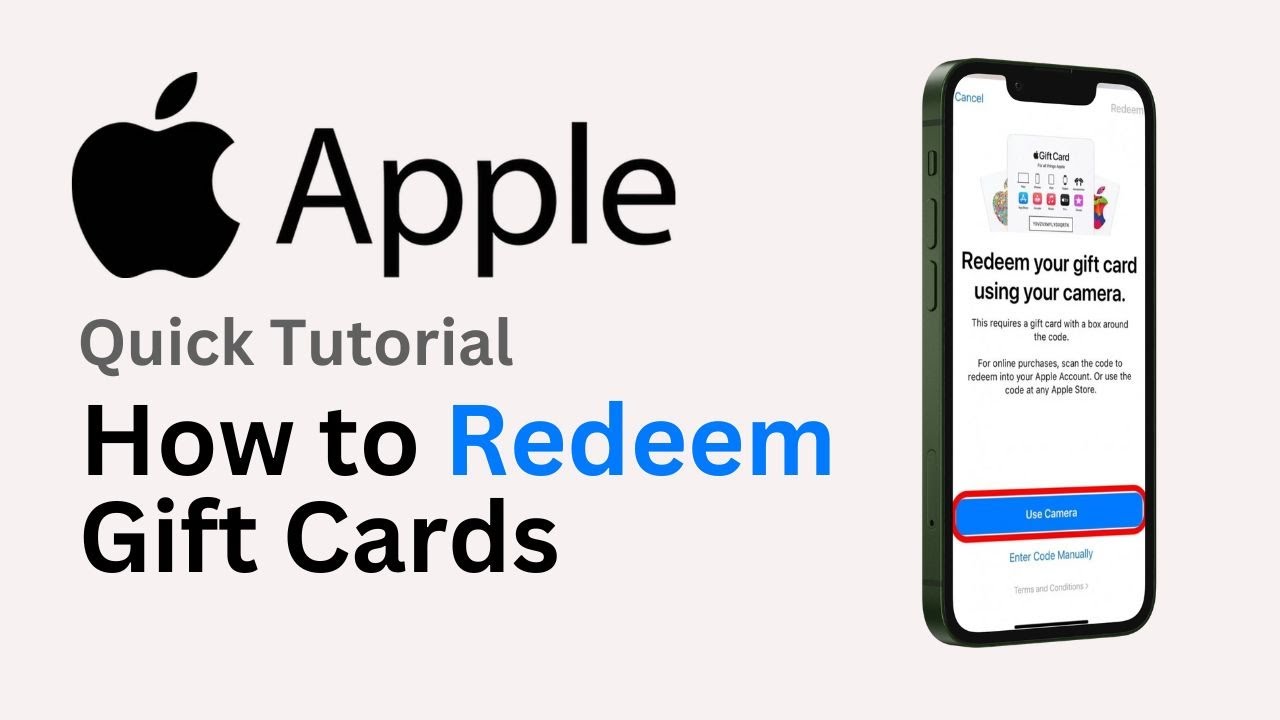
Redeeming an Apple Gift Card online is simple and fast. It lets you add credit to your Apple ID. This credit can buy apps, music, movies, and more from Apple stores.
The process starts with signing in to your Apple ID account. Then, enter the card’s code carefully. Finally, confirm the redemption to add the balance to your account.
Accessing Your Apple Id Account
Open the Apple website or the App Store on your device. Click on the sign-in button. Enter your Apple ID and password. If you do not have an account, create one.
Check that you use the same Apple ID where you want to add the credit. This step is important for the credit to apply correctly.
Entering The Code
Locate the “Redeem” option in your Apple ID account or the App Store menu. Scratch the gift card to reveal the code. Type the code exactly as shown.
Double-check for any mistakes. Use capital letters and numbers as needed. Avoid spaces or extra characters.
Confirming Redemption
After entering the code, click the redeem button. Wait for the system to verify the code. A confirmation message will appear once the process is successful.
Your Apple ID balance now includes the gift card amount. You can start using it to make purchases immediately.
Using The Balance For Purchases
Using the balance on your Apple Gift Card is simple and convenient. It works across many Apple services and products. The balance automatically applies at checkout. You do not need to enter any codes each time. Just select the items and pay with your Apple ID balance.
Shopping On The App Store
The App Store offers thousands of apps, games, and tools. Use your Apple Gift Card balance to buy apps or make in-app purchases. The balance covers full app prices and subscriptions. It helps avoid using credit cards or other payment methods. Your balance applies as soon as you start the purchase.
Buying From Apple Music
Apple Music lets you stream millions of songs and playlists. Use your gift card balance to pay for monthly subscriptions. The balance also works for purchasing individual songs or albums. The payment happens automatically using your Apple ID balance. No extra steps needed to enjoy your favorite music.
Purchasing Apple Subscriptions
Many Apple services require subscriptions. These include Apple TV+, iCloud storage, and Apple Arcade. Your Apple Gift Card balance can pay for these services. The system deducts the amount during the renewal or sign-up. This makes managing your subscriptions easier and secure.

Credit: www.shopyourway.com
Checking Your Gift Card Balance
Knowing your Apple Gift Card balance helps you plan your purchases better and avoid any surprises at checkout. Checking your balance is quick and easy, whether you’re using an iPhone, iPad, Mac, or PC. Here’s how you can do it on your favorite device.
Via Iphone Or Ipad
On your iPhone or iPad, open the App Storeapp. Tap your profile picture at the top right corner to access your account. Your Apple Gift Card balance will appear right under your name if you’ve added the card to your account.
If you don’t see your balance, try redeeming the gift card again. Simply tap “Redeem Gift Card or Code” and follow the prompts to add the balance to your account. You’ll instantly see the updated amount, making it easy to track your spending.
Using A Mac Or Pc
On a Mac, launch the App Storeand click your name at the bottom left. Your gift card balance will be listed under your account information. This is the same place where you manage subscriptions and payment methods.
If you’re on a PC, open iTunesand sign in with your Apple ID. Click on your account name, then select “Account Info.” Scroll down to find your Apple Gift Card balance displayed in the payment section.
Have you ever tried checking your balance just before a purchase? It can save you from unexpected declines and help you decide if you need to add more funds. Keeping an eye on your balance keeps you in control of your Apple spending.
Troubleshooting Common Issues
Using an Apple Gift Card online usually goes smoothly, but sometimes issues pop up that can be frustrating. Understanding how to handle common problems helps you avoid delays and enjoy your purchases without hassle. Let’s look at some frequent troubles and what you can do to fix them quickly.
Invalid Or Expired Codes
If you enter your gift card code and it shows as invalid, double-check the characters carefully. It’s easy to confuse similar-looking letters and numbers like ‘O’ and ‘0’ or ‘I’ and ‘1’. Make sure there are no extra spaces before or after the code when you paste it.
Expired codes are another reason your gift card might not work. Apple gift cards typically have a long validity period, but some regional restrictions apply. If your card is expired, unfortunately, it cannot be redeemed, so verify the expiration date printed on your card or receipt.
Balance Not Updating
Sometimes, after redeeming your Apple Gift Card, the balance doesn’t show up immediately. This delay can occur due to server issues or slow internet connections. Try logging out of your Apple ID and logging back in to refresh your account balance.
If the balance still doesn’t update, check your purchase history to see if the card was applied correctly. Occasionally, the system might take a few hours to reflect the new balance, especially during peak usage times.
Contacting Apple Support
If you’ve tried all troubleshooting steps and your gift card still isn’t working, contacting Apple Support is your best option. Have your card details ready, including the code and receipt, to speed up the process.
You can reach out via the Apple Support website, chat, or phone. They can check your card status, help resolve account issues, and guide you through redeeming the balance. Don’t hesitate to ask—they’re there to help you make the most of your gift card.

Credit: www.apple.com
Frequently Asked Questions
How Do I Redeem An Apple Gift Card Online?
To redeem, sign in to your Apple ID on the App Store or iTunes. Click “Redeem” and enter the card code. The balance adds to your Apple ID for purchases.
Can Apple Gift Cards Be Used For Subscriptions?
Yes, Apple Gift Cards can pay for Apple Music, Apple TV+, iCloud storage, and other subscriptions linked to your Apple ID.
Where Can I Check My Apple Gift Card Balance?
Check your balance by signing into your Apple ID account page or via the App Store. The remaining credit will be displayed.
Are Apple Gift Cards Valid Worldwide?
Apple Gift Cards are generally country-specific. Redeem them only in the country where they were purchased for use.
Conclusion
Using an Apple Gift Card online is simple and safe. Just enter the code during checkout to pay easily. You can buy apps, music, or subscriptions without hassle. Keep your card code private to avoid problems. Always check your balance before shopping.
Enjoy the convenience of digital payments with Apple Gift Cards. They make online buying smooth and quick. Try it yourself and see how easy it is. No need to carry cash or cards around. Just a few clicks, and you are done.

Similar Posts