How to Add Gift Card to Steam: Unlock Gaming Credits
Looking to add a gift card to your Steam account but not sure where to start? You’re in the right place.
Adding a gift card might seem tricky at first, but it’s actually quick and simple. Imagine instantly boosting your Steam wallet without any hassle—ready to grab your favorite games or in-game items right away. In this guide, you’ll learn exactly how to add your gift card step-by-step, so you can get back to gaming faster.
Keep reading, and you’ll have your Steam wallet loaded in no time.
Steam Wallet Basics
Understanding the Steam Wallet is essential before you add a gift card to your account. It acts like a digital purse where you store funds to buy games, downloadable content, or even software. Knowing how it works can save you time and make your gaming experience smoother.
What Is A Steam Wallet
The Steam Wallet is a virtual balance linked to your Steam account. You can add money to it using various methods, including gift cards. Once the funds are in your wallet, you can spend them instantly without re-entering payment details.
Think of it as prepaid money just for Steam. It’s not cash, but it works like a digital currency exclusive to Steam purchases. This means you cannot withdraw it or use it outside the platform.
Benefits Of Using Steam Wallet
Using the Steam Wallet gives you quick access to your funds. You don’t have to type your card information every time you want to buy a game or DLC.
- Security:Keeping money in your wallet reduces the risk of exposing your credit card during every purchase.
- Budget Control:You can limit your spending by adding only a set amount to your wallet, avoiding overspending.
- Easy Gifting:Gift cards add funds directly to your wallet, making it easy to receive and use gifts.
Have you ever hesitated to buy a game because you didn’t want to share your payment info repeatedly? The Steam Wallet solves this problem neatly. It also encourages you to explore deals and sales without the hassle of payment each time.

Credit: www.tiktok.com
Types Of Steam Gift Cards
Steam gift cards offer you a simple way to add funds to your Steam Wallet. Before you add a gift card, it helps to know the types available so you can choose what fits your needs best. Steam provides both physical and digital options, each with its own advantages.
Physical Gift Cards
Physical Steam gift cards are the traditional type you can find at stores. They come as plastic cards with a code hidden under a scratch-off area. You can buy them from retailers like game shops, supermarkets, or convenience stores.
One benefit of physical cards is that you can gift them personally or keep them as a backup. I once bought a physical card for a friend’s birthday, and they loved the surprise of receiving a tangible gift. Plus, these cards don’t expire, so you can add the code whenever you want.
Digital Gift Cards
Digital Steam gift cards are delivered instantly via email or through online stores. You receive a code that you can redeem immediately, making them perfect for last-minute gifts or quick top-ups. Many websites and the Steam store itself offer digital cards.
What’s great about digital cards is their convenience—you don’t have to leave your home or wait for shipping. Have you ever needed to add funds quickly for a flash sale? Digital gift cards solve that problem smoothly.
Where To Buy Steam Gift Cards
Steam gift cards are easy to find in many places. They let you add funds to your Steam account safely. Choosing the right place to buy helps avoid scams. Here are common places to get genuine Steam gift cards.
Authorized Retailers
Authorized retailers sell official Steam gift cards. These include big stores and gaming shops. Buying from them ensures your card works without issues. Some popular authorized retailers are:
- Walmart
- Best Buy
- GameStop
- Target
- Local electronics and gaming stores
These stores offer physical cards or digital codes. You can visit their websites or stores directly. Cards bought here come with a secure code for Steam.
Online Marketplaces
Online marketplaces also sell Steam gift cards. These platforms allow buying digital codes instantly. Trusted websites include:
- Amazon
- eBay (check seller ratings carefully)
- Official Steam website
- Specialized digital code sellers like Green Man Gaming
Buying from verified sellers reduces the risk of fraud. Always check reviews before purchasing. Digital codes arrive by email or in your account quickly.

Credit: www.youtube.com
Steps To Add Gift Card To Steam
Adding a gift card to your Steam account is a simple process. It lets you use the card balance to buy games, software, and other items. Follow these clear steps to add your gift card quickly and safely.
Logging Into Your Steam Account
Start by opening the Steam website or app. Enter your username and password carefully. Make sure you use the correct account linked to your gift card. Click the login button to access your profile.
Navigating To Wallet Page
After logging in, locate your account name at the top right. Click it to open a dropdown menu. Select “Account details” from the list. Find and click the “Add funds to your Steam Wallet” option on the page.
Entering The Gift Card Code
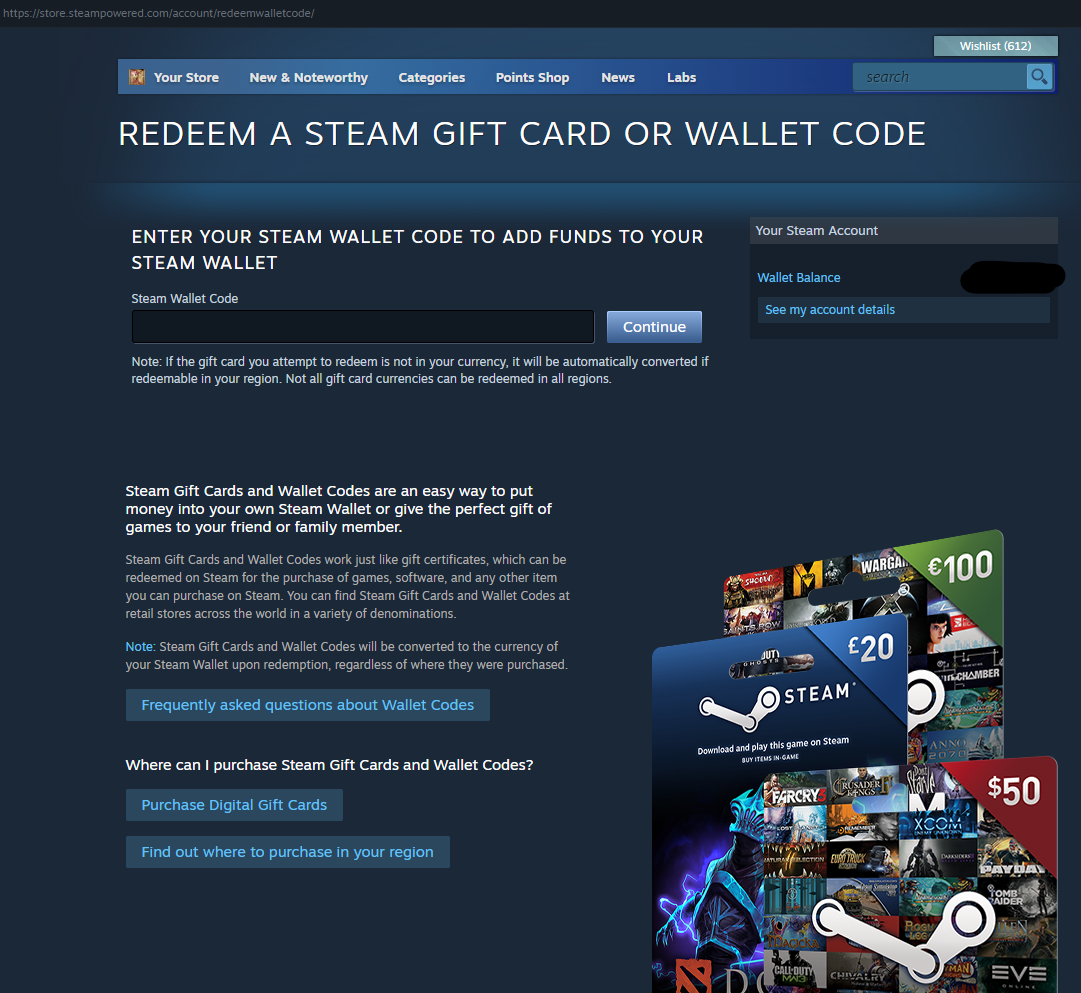
On the wallet page, look for the “Redeem a Steam Gift Card or Wallet Code” link. Click it to open the code entry field. Carefully type the code printed on your gift card. Double-check for any mistakes before submitting.
Confirming The Transaction
Press the “Continue” button after entering the code. Steam will verify your gift card details. If valid, your wallet balance will update instantly. You can now use the funds to shop on Steam.
Troubleshooting Common Issues
Adding a gift card to Steam should be simple. Still, some common problems can stop the process. Knowing how to fix these issues helps save time and frustration. Below are solutions to frequent errors users face while redeeming Steam gift cards.
Invalid Or Expired Codes
Steam gift cards have a code printed on them. This code must be entered exactly as shown. Mistakes like swapping letters and numbers can cause the code to be invalid. Double-check the code before entering it.
Gift cards also expire after a certain time. An expired card will not work. Check the card’s expiration date on the back or the receipt. If expired, the card cannot be used on Steam.
Region Restrictions
Some Steam gift cards only work in specific countries. This means a card bought in one country may not work in another. Steam detects your account’s region and blocks codes from different regions.
Make sure the card matches your Steam account region. Use a card purchased locally. If your region has changed recently, update your Steam account settings to match your current location.
Redeeming Errors
Sometimes Steam shows errors during code redemption. These can happen due to server problems or connection issues. Try redeeming the code again after a few minutes.
Clear your browser cache or use the Steam desktop app to redeem the card. Avoid using VPNs or proxies that may cause errors. If problems continue, contact Steam support with the card details for help.

Credit: www.reddit.com
Using Steam Credits For Purchases
Using Steam credits gives you a flexible way to shop on the platform without reaching for your credit card each time. Once you’ve added your gift card to your Steam Wallet, you can spend that balance on a variety of digital content. This section breaks down how you can make the most of your Steam credits for different types of purchases.
Buying Games And Dlc
Steam credits let you buy full games and downloadable content (DLC) easily. When you find a game you want, simply choose the option to pay with your Steam Wallet balance. This saves you from entering payment details every time and keeps your spending in check.
Imagine spotting a new indie game on sale. You can use your credits right away without worrying about your bank balance. It’s a smooth process that encourages you to try new games without extra hassle.
Purchasing In-game Items
Your Steam Wallet balance isn’t just for games; it also covers in-game purchases. Many games offer skins, weapons, or other items you can buy directly through Steam using your credits. This means you can enhance your gaming experience without switching payment methods.
Think about how quick it is to grab a new skin for your favorite character during a match. Using Steam credits lets you focus on the game, not on entering your card details. It’s fast and convenient, especially when you want to jump straight into gameplay.
Managing Your Wallet Balance
Keeping track of your Steam Wallet balance helps you plan your purchases better. You can view your current balance anytime in your Steam account under the wallet section. This way, you avoid surprises at checkout and know exactly how much you can spend.
If you’re low on credits, you can add more through Steam’s secure interface. Regularly checking your balance also helps you decide when to save or spend. How often do you check your wallet before hitting the buy button?
Tips For Safe Gift Card Use
Using Steam gift cards safely is important to protect your money and account. Follow simple tips to avoid common problems and keep your codes safe. These steps help you enjoy your games without stress.
Avoiding Scams
- Buy gift cards only from official stores or trusted sellers.
- Never share your gift card code with strangers or online posts.
- Ignore offers that seem too good to be true; they often are.
- Check the card’s packaging for any signs of tampering before purchase.
- Report suspicious sellers or websites to Steam support immediately.
Keeping Codes Secure
- Store your gift card code in a safe place away from others.
- Use a password manager or a locked note app for digital storage.
- Avoid taking pictures of the code and sharing them online.
- Redeem the card as soon as possible to reduce risk of theft.
- Do not enter codes on unofficial or fake websites.
Frequently Asked Questions
How Do I Redeem A Steam Gift Card?
To redeem a Steam gift card, log in to your Steam account. Go to “Games” and select “Redeem a Steam Wallet Code. ” Enter the code found on your gift card and click “Continue” to add funds to your wallet.
Can I Add Multiple Gift Cards To Steam?
Yes, you can add multiple gift cards to your Steam wallet. Each code adds funds to your balance. Simply redeem each card one by one through the Steam Wallet redemption page.
Where Can I Find My Steam Gift Card Code?
The Steam gift card code is located on the back of the card under a scratch-off area. For digital cards, the code is in your email or purchase confirmation.
Is Adding A Gift Card To Steam Safe?
Yes, adding a gift card to Steam is safe when done through the official Steam platform. Avoid sharing your code online and redeem only on Steam’s official website.
Conclusion
Adding a gift card to Steam is quick and easy. Just follow the steps carefully. Enter the code, and your balance updates instantly. This lets you buy games and content without hassle. Remember to keep your code safe and private.
Enjoy your new games and have fun playing!

Similar Posts